C Programming Part 4: C Program Basic Structure


Let us take a look at the various parts of the program −
The first line of the program #include <stdio.h> is a preprocessor command, which tells a C compiler to include stdio.h file before going to actual compilation.


The next line /*...*/ will be ignored by the compiler and it has been put to add additional comments in the program.


The next line int main() is the main function where the program execution begins.


The next line printf(...) is another function available in C which causes the message "Hello, World!" to be displayed on the screen.


The next line return 0; terminates the main() function and returns the value 0.


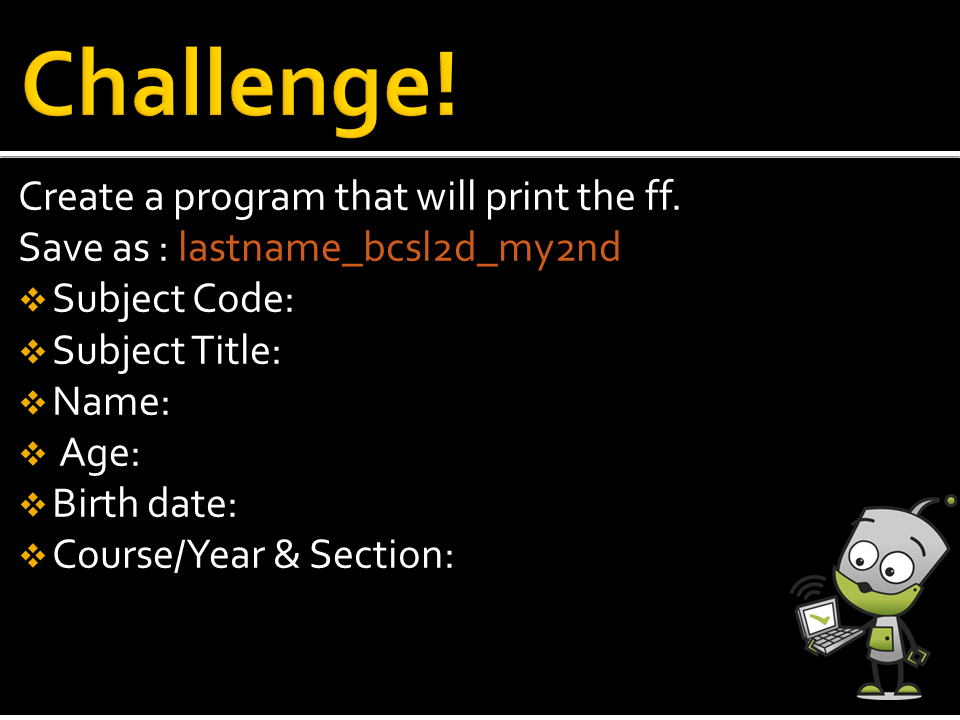
Suggestion: Use printf  function(ex . printf(""))


C Programming Part 3: First C Program


Copy and paste this code on your IDE
=================================
#include <stdio.h>
int main(0 { 
/* My First Program in C */
printf("Hello, World! \n"); 
return 0 ; 
} 
==================================

C Programming Part 1: Lessons, topics and basic Activities for Students


What is Programming Language? 
C is a high level programming language developed in 1972 by Dennis M. Ritchie at the Bell Telephone Laboratories to develop the UNIX operating system. 


============
Prerequisites
============
You should have a basic understanding of Computer Programming terminologies. A basic understanding of any of the programming languages will help you in understanding the C programming concepts and move fast on the learning track.


The minimum software requirements to program in C is a text editor like Notepad++ or 

IDE – Integrated Development Environment
An IDE is a suite of programs that developers need, combined into one convenient package, usually with a graphical user interface. 

These programs include a text editor, linker, project management and sometimes bundled with a compiler. They also typically include a debugger, a tool that will preserve your C source code after compilation and enable you to do such things as step through it manually, or alter data as an aid to finding and correcting programming errors.


Before you can start programming in C, you will need a C compiler. A compiler is a program that converts C code into executable machine code.


 Suggestion: Use Code Blocks as your IDE
You can download this IDE on their website: http://www.codeblocks.org/

Follow the steps: 


Select Codeblocks-17.12.mingw-setup.exe. This file includes  file includes additionally the GCC/G++ compiler and GDB debugger from TDM-GCC (version 5.1.0, 32 bit, SJLJ)


Java Programming Part 13: First Java Program Using IDE


To use this type of IDE, you need to download and install it on your PC. Below are the basic features of Eclipse program that you should know before you do and run your first java program


Package Explorer
The Package Explorer view, shown by default in the Java perspective, shows the Java element hierarchy of the Java projects in your workbench.


Editor Window
A window where you write, display, and edit code


Problems View
shows errors and warnings in the current project. For example, if the code contains invalid character, this list will say so. Its extremely useful as it clearly tells you the type of the error(s) showing a full description, file name, line and everything else that helps you easily find and fix the error


The output will appear under Console View


1. Press the Run [  ] button in the workbench toolbar 


Java Programming Part 12: How to run java in a Command Line


Go to start menu, Type cmd


Type cd desktop, on my example I save my java file on the desktop that's why I added '"cd desktop" 

Type javac Test1.java to compile the java program, this will produce a .class file

Type 'java Test1' , then press enter. The program will appear after you hit enter

Java Programming Part 11: First Java Program


-----------------------------------------------------------------------------
Open notepad and add the code as above.
Save the file as: Test1.java
-------------------------------------------------------------------------------------------------------------------


Java Programming Part 10: Setting up the path for windows


--------------------------------------------------------------------------------
Go to start menu> Right click My Computer > Properties > Advanced System Settings > Environment Variables button > Select Path under System variable text field > Click Edit button. Make sure you see something like the following. Paste the copied file path .
-------------------------------------------------------------------------------